Inspect before changing
Review supported cleanup categories, startup entries, and local resource observations.


Windows maintenance
Bring cleanup, startup management, selected history removal, and performance diagnostics together, with recovery options for supported changes.
For people who want clearer choices when maintaining a Windows PC.
Included with compatible MalwareINFO licensing
Review supported cleanup categories, startup entries, and local resource observations.
Select the categories and supported settings that match the maintenance task.
Retain original data for supported registry, startup, shortcut, service, and tuning changes.
EXPLORE THE DETAILS
Choose a topic below. Detailed descriptions and relevant limitations remain available in each section.
UIS System Doctor is a Windows maintenance application developed by United Info-Sec Co., Ltd. It brings cleanup, startup management, recent-history removal, performance diagnostics, and recovery tools into one organized interface.
Whether you want to remove temporary files, manage apps that launch at sign-in, clear selected browsing records, or investigate a slowdown, UIS System Doctor gives you a practical place to start.
Its approach is straightforward: inspect what is present, choose the action you need, and retain recoverable originals for supported changes.
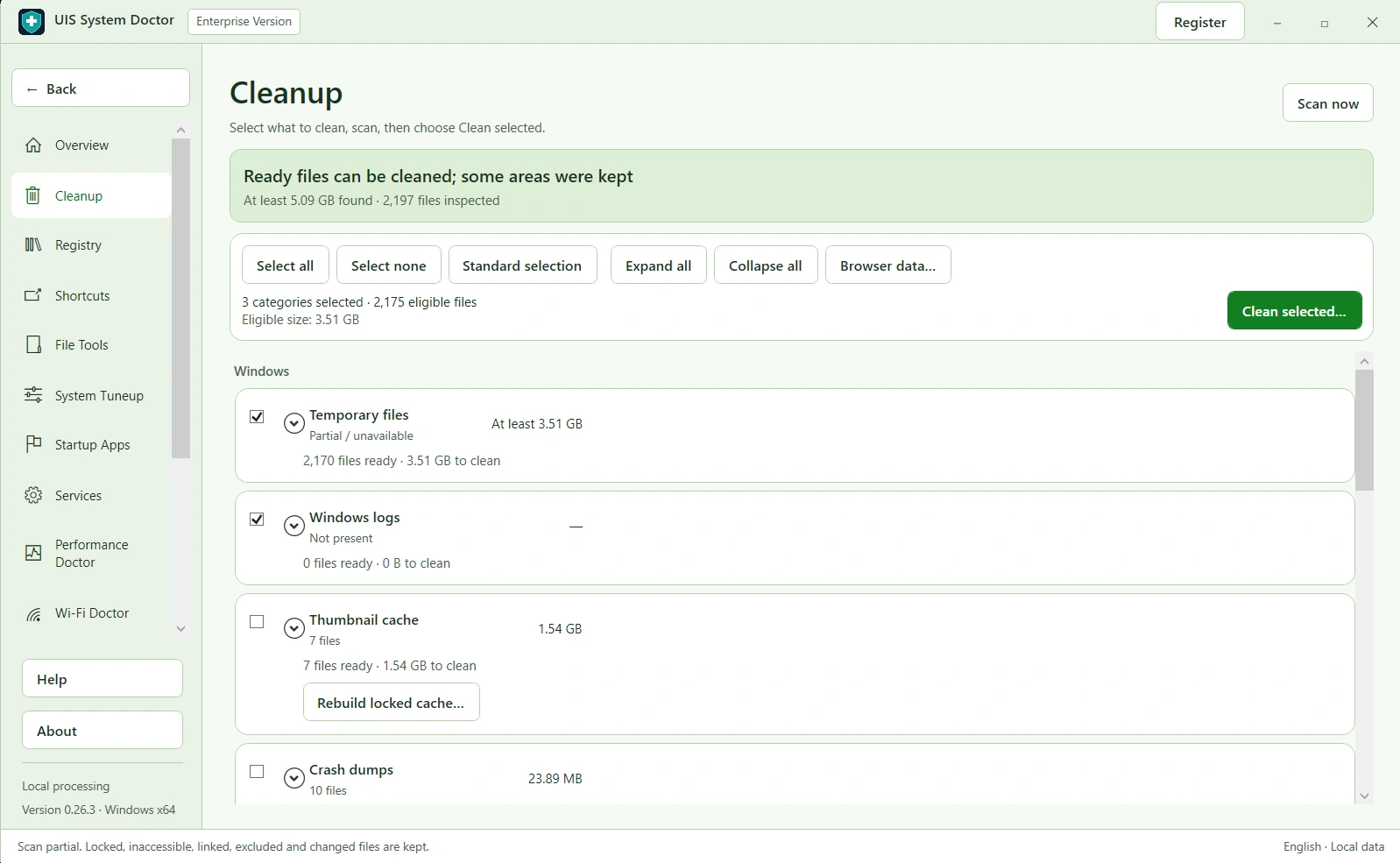
The Clean now action on the Overview page handles a standard cleanup workflow covering eligible temporary files, browser cache, supported invalid registry references, and broken shortcuts.
For more control, the Cleanup page lets you scan individual categories and choose what to remove.
Available cleanup areas include:
Results distinguish removed files from items that were kept, unavailable, or could not be verified. Locked, changed, protected, linked, and excluded files are retained where the applicable checks require it.
Standard cleanup keeps your documents, downloaded files, saved passwords, cookies, and browsing history. Separate tools let you explicitly choose additional browser or recent-history data.
Browser data should not be an all-or-nothing decision.
UIS System Doctor lets you select supported data separately for detected profiles in Chrome, Microsoft Edge, Firefox, Opera, and Opera GX.
Depending on the browser profile and supported database layout, you can choose:
Passwords, bookmarks, and autofill are kept.
Clear selection controls, browser filters, expandable details, and operation results help you understand the scope before proceeding. Browsers should be closed normally first; UIS System Doctor does not terminate them automatically.
The dedicated Recent History page helps remove supported local records of previously opened files and recently used locations.
It covers three main areas:
Clean supported Recent shortcuts and selected Jump List database files without deleting their target documents.
Jump List databases can also contain pinned destinations. UIS System Doctor therefore requires a separate selection option before including them in cleanup.
Clear recognized local Recent records for supported versions of Word, Excel, and PowerPoint, including supported account-specific registry locations.
The registry cleanup retains recognized pinned entries, unknown-format records, and application preferences.
Clear supported Windows Open/Save dialog history records together with their associated index, with original data backed up before removal.
These tools manage local history. Windows, Office, or cloud-connected accounts may record or display history again after cleanup.
UIS System Doctor identifies supported invalid references and offers cleanup where the entry’s meaning and current state can be verified.
Supported rules and dedicated managers cover selected areas such as:
Eligible removals save original data for recovery. Available actions differ by category: ambiguous commands, protected registrations, unsupported structures, and changed entries may remain read-only.
Registry cleanup is intended to remove supported stale references or selected metadata. It does not promise a performance increase simply by reducing the number of registry entries.
Remove eligible shortcuts whose local targets are confirmed missing.
UIS System Doctor backs up supported shortcuts before removal and provides a Restore workflow for saved originals. It removes the shortcut itself, not the application or document it points to.
Uncertain targets, unavailable drives, and unsupported shortcuts are retained for review.
Choose which supported apps you do not need to launch at Windows sign-in.
Startup Manager can manage validated current-user Run registrations and supported files in the Startup folder. A separate All-users Startup Administrator manager provides the supported machine-wide workflow.
Disabling a startup entry keeps the application installed. Original registry data or Startup files are retained so supported changes can be restored later.
Windows startup approval and other startup mechanisms can affect whether an application actually launches; registration presence alone is not treated as a measured startup-impact result.
System Tuneup presents supported Windows preferences with an explanation of their purpose and effect.
Apply individual available settings, save their original state, and use Restore when you want to undo a supported change.
The Services feature provides controlled changes for selected optional functions, including supported printing, Bluetooth, Fax, and Xbox-related services. Original configuration is backed up before an eligible service is disabled.
Required, dependent, protected, or unsupported services may be blocked. Disabling a service can affect the feature that depends on it, so the app explains the impact before a change.
File Tools helps investigate files or folders that cannot be renamed or removed.
Available supported actions include:
Moving a file into Recovery preserves it on the same volume and does not reclaim disk space. Restore returns a supported original only when the destination and saved state pass the required checks.
Administrator permissions do not release a file lock held by another application.
Performance Doctor samples CPU usage, physical memory, disk activity, and process resource consumption across several intervals.
It helps you identify high resource usage and compare checks within the current session. It does not automatically stop processes or claim that a short measurement proves the cause of every slowdown.
Storage Analyzer scans a selected local folder and lists large files and folders. You can then review a selected file in File Tools. The analyzer itself does not delete files automatically.
Wi-Fi Doctor displays available connection information and offers bounded connection tests, with optional external connectivity and throughput checks. It helps you investigate connection conditions; it does not promise to increase the speed provided by your network or Internet service.
Update & Health Check presents local Windows, restart, and storage observations, with a separate optional search for available software updates. It does not automatically download or install updates, and it does not infer disk hardware health from free-space figures.
Supported registry, shortcut, startup, service, Tuneup, and File Tools changes retain original data or recovery information.
Restore workflows check the saved original and the current destination. Later files, changed settings, or newly created history records may prevent restoration rather than being overwritten.
Temporary-file and cache deletion are different: those removals generally do not have an application Restore option.
Recovery backups can contain personal information. Keep them protected, particularly when backing up browser or recent-file history.
UIS System Doctor includes:
Core maintenance works locally on the PC. Optional network tests and software-update searches require access to their respective network services.
UIS System Doctor supports Professional and Enterprise license keys bound to the computer’s Hardware ID.
Compatible MalwareINFO Professional and Enterprise keys for the same computer can be validated by System Doctor, retaining the edition and expiry date encoded in the key.
Without a valid active license, scanning remains available while Clean and new modification actions are restricted. Existing supported Restore and recovery operations remain available without an active cleanup license.
| Item | Details |
|---|---|
| Product | UIS System Doctor |
| Developer | United Info-Sec Co., Ltd. |
| Platform | Windows desktop; current package is 64-bit |
| Interface language | English |
| License editions | Professional and Enterprise |
| Primary purpose | Cleanup, supported maintenance, diagnostics, and recovery |
| Elevated access | Required for selected Administrator operations |
UIS System Doctor is a maintenance utility, not an antivirus replacement. Results depend on the computer’s condition, available permissions, supported data formats, and the actions selected. Cleanup cannot guarantee a faster PC or repair every Windows problem.
Remove eligible clutter, manage supported startup entries, clear selected local history, and investigate resource usage—with clearer choices and recovery options for supported changes.
Discover UIS System Doctor by United Info-Sec Co., Ltd.
Visit www.unitedinfosec.com or www.malwareinfo.app for product information.
INSIDE UIS SYSTEM DOCTOR
Expand a screenshot to inspect the interface. All supplied figures remain available in order.
GET UIS SYSTEM DOCTOR
Request the current package and installation requirements by email. This opens a draft in your email application.
Request the Windows packageWindows desktop · 64-bit
INCLUDED WITH MALWAREINFO
UIS System Doctor is normally not sold separately. Use your compatible MalwareINFO Professional or Enterprise key on the same computer. The edition and expiry date remain those encoded in the key.
Get with MalwareINFOMORE FROM UIS

Security analysis
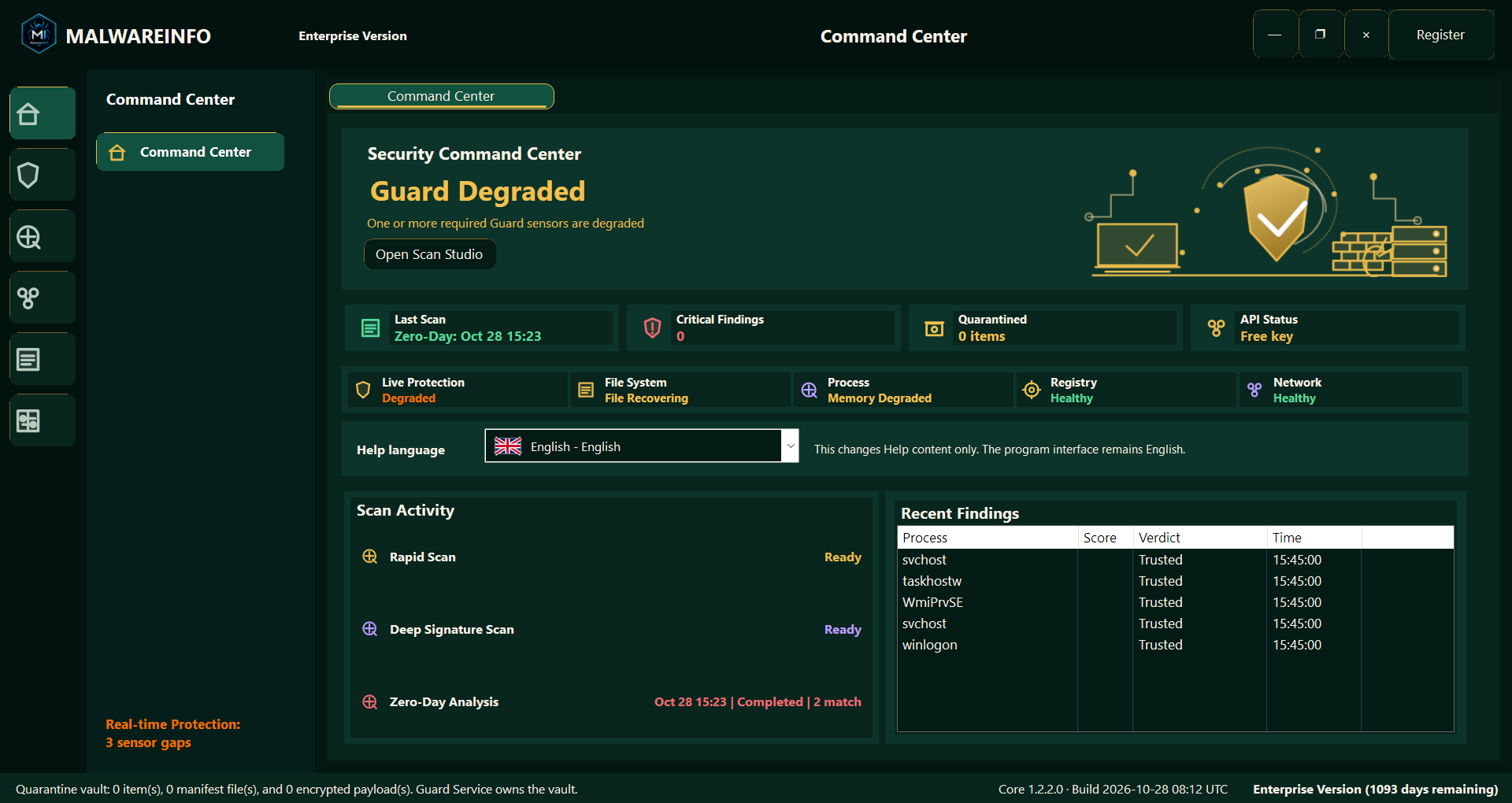
File inspection, memory analysis, runtime tracing, and evidence reporting in one connected Windows investigation workflow.
Explore MalwareINFO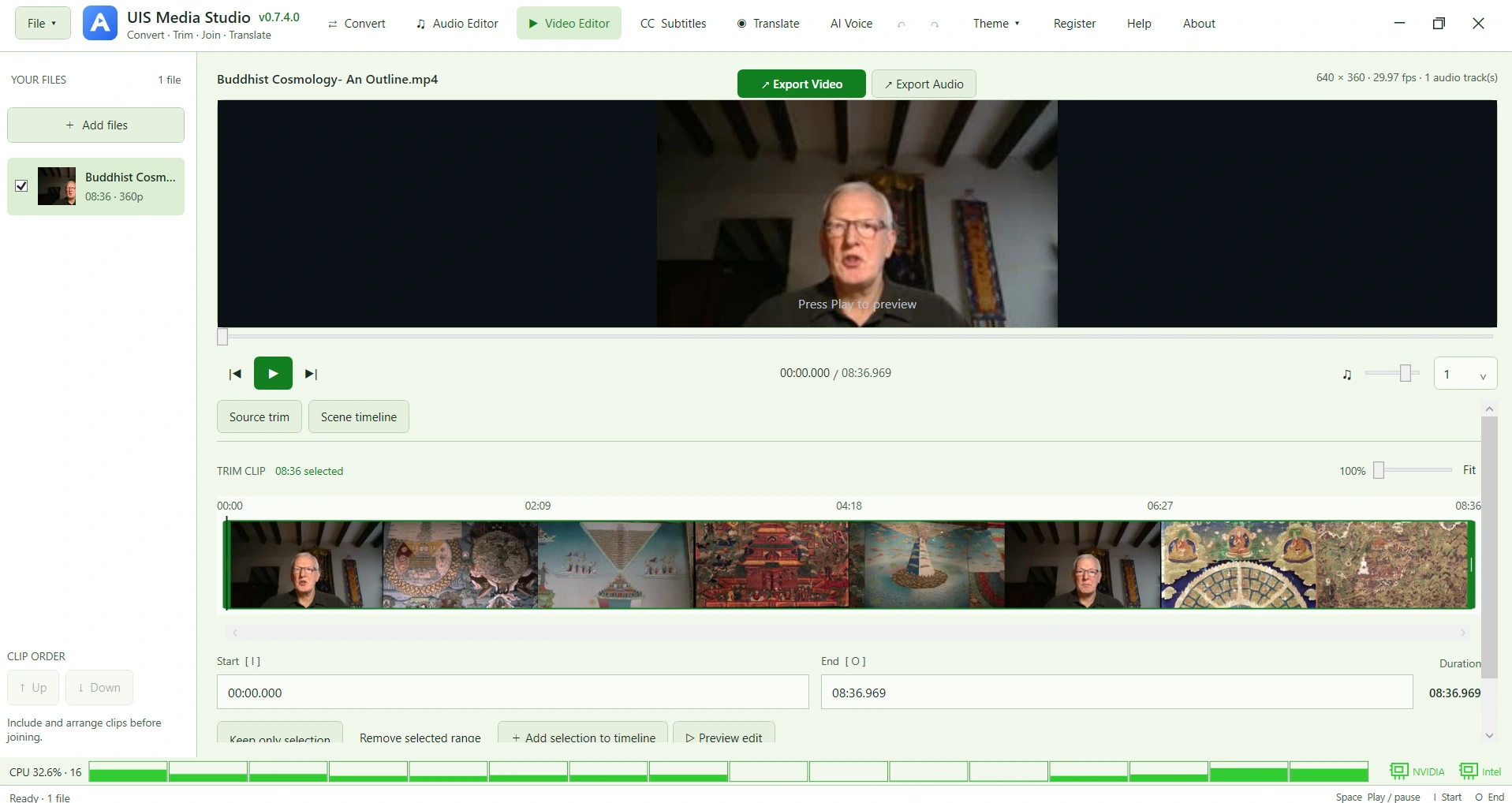

Media creation
Audio and video editing, conversion, subtitles, transcription, translation, and AI voice generation in one organized workspace.
Explore UIS Media StudioLET’S WORK ON IT
Tell us what you need. We can discuss a practical starting point.

