Shape the story
Convert, trim, arrange, and join supported audio and video with preview before export.


Media creation
Audio and video editing, conversion, subtitles, transcription, translation, and AI voice generation in one organized workspace.
For creators, editors, interviewers, and teams working with multilingual media.
USD 50 / two years · USD 100 / lifetime
Convert, trim, arrange, and join supported audio and video with preview before export.
Create and style captions, transcribe speech, and use supported offline translation models.
Save supported editing decisions in a .uismedia project while keeping original media separate.
EXPLORE THE DETAILS
Choose a topic below. Detailed descriptions and relevant limitations remain available in each section.
UIS Media Studio is a Windows desktop application developed by United Info-Sec Co., Ltd. It brings audio conversion, audio and video editing, subtitle creation, offline transcription, translation, and AI voice generation into one organized workspace.
Whether you are preparing a short video, editing an interview, extracting audio, creating captions, or working with multilingual content, UIS Media Studio helps you move from source media to a finished output.
Preview your work, make your changes, and export the result—while keeping your original media files unchanged.
The Convert workspace turns supported audio files and videos containing audio into MP3 or WAV.
Add several files, select the ones you need, choose the audio track and output settings, and start the conversion queue.
Available features include:
The selected destination folder is used directly, and existing output filenames receive a numbered suffix to preserve earlier exports.
The Audio Editor helps you remove unwanted sections and arrange the parts you want to keep.
Use the waveform, playback controls, selection handles, or editable time fields to locate a section precisely.
You can:
Timeline zoom and horizontal scrolling make it easier to work on a small section of a longer recording.
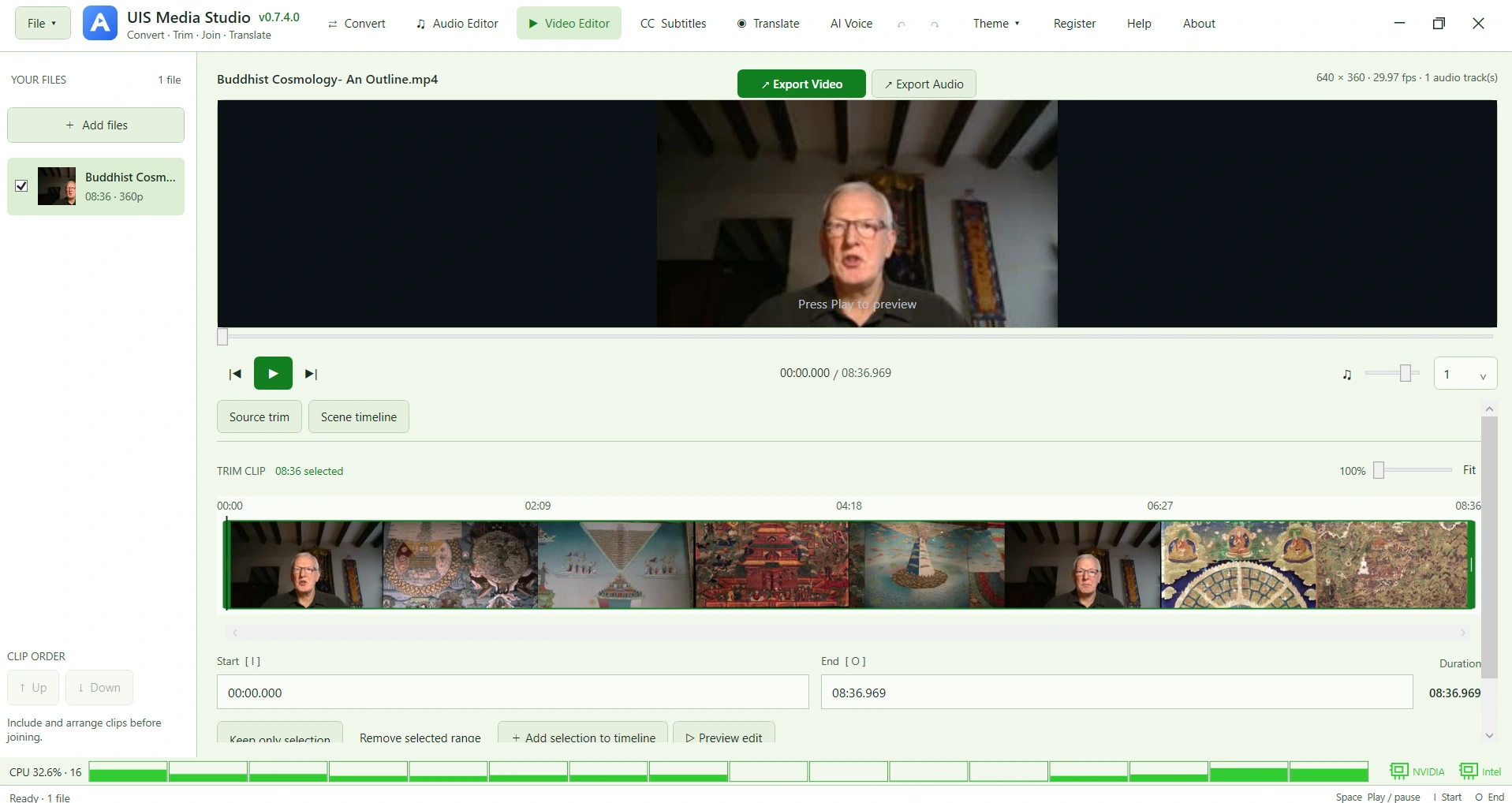
The Video Editor provides a scene-based workflow for assembling video content.
Split a clip at the playhead, remove unwanted scenes, and rearrange sections into the order you need. Scenes from different source files can share the same timeline.
Editing features include:
The audio export option lets you save the sound from an edited video sequence without creating another video file.
Export edited videos as MP4 or MKV, using the original dimensions or a custom width and height.
This makes UIS Media Studio useful for both landscape videos and portrait content, including reels, interviews, and short-form productions.
Export controls include:
Compatible, unedited sources can use Remux where applicable, avoiding unnecessary video re-encoding. Source-aware bitrate handling helps control unnecessary file-size growth for supported original-resolution exports.
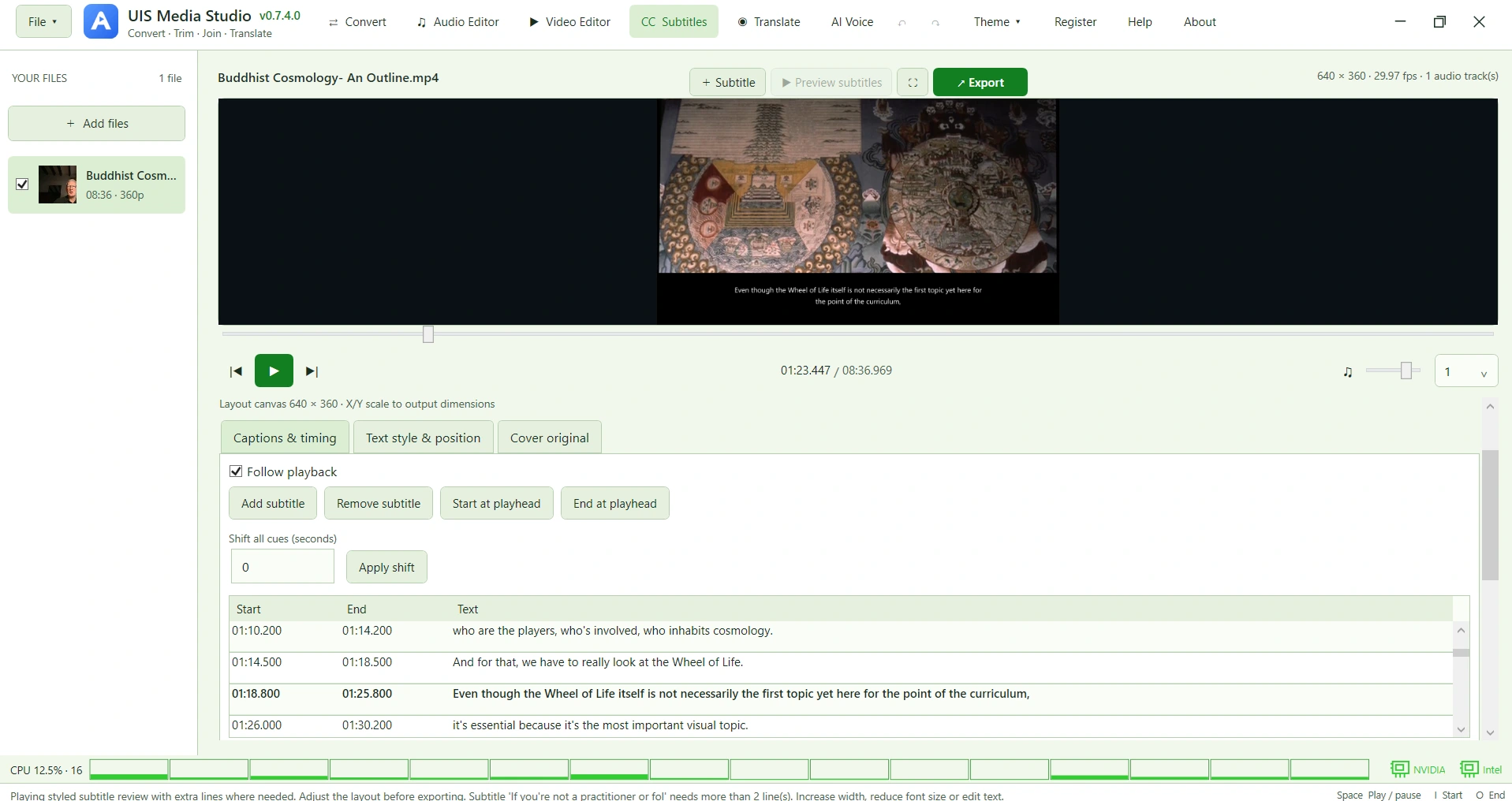
The Subtitles workspace lets you import supported SRT, SUB, and TXT subtitle sources and edit captions alongside the video.
You can add new captions, change their text, adjust their timing, or shift all cues together. Plain TXT entries require start and end times.
Subtitle controls include:
Selected words or names can have their own emphasis or color without changing the appearance of the entire caption.
Check subtitle placement and readability before committing to an export.
UIS Media Studio provides:
You can save editable subtitle text separately or export a video with the subtitles permanently burned into the picture.
Saving an edited original SRT creates a backup. Saving a project also retains the app’s subtitle layout settings.
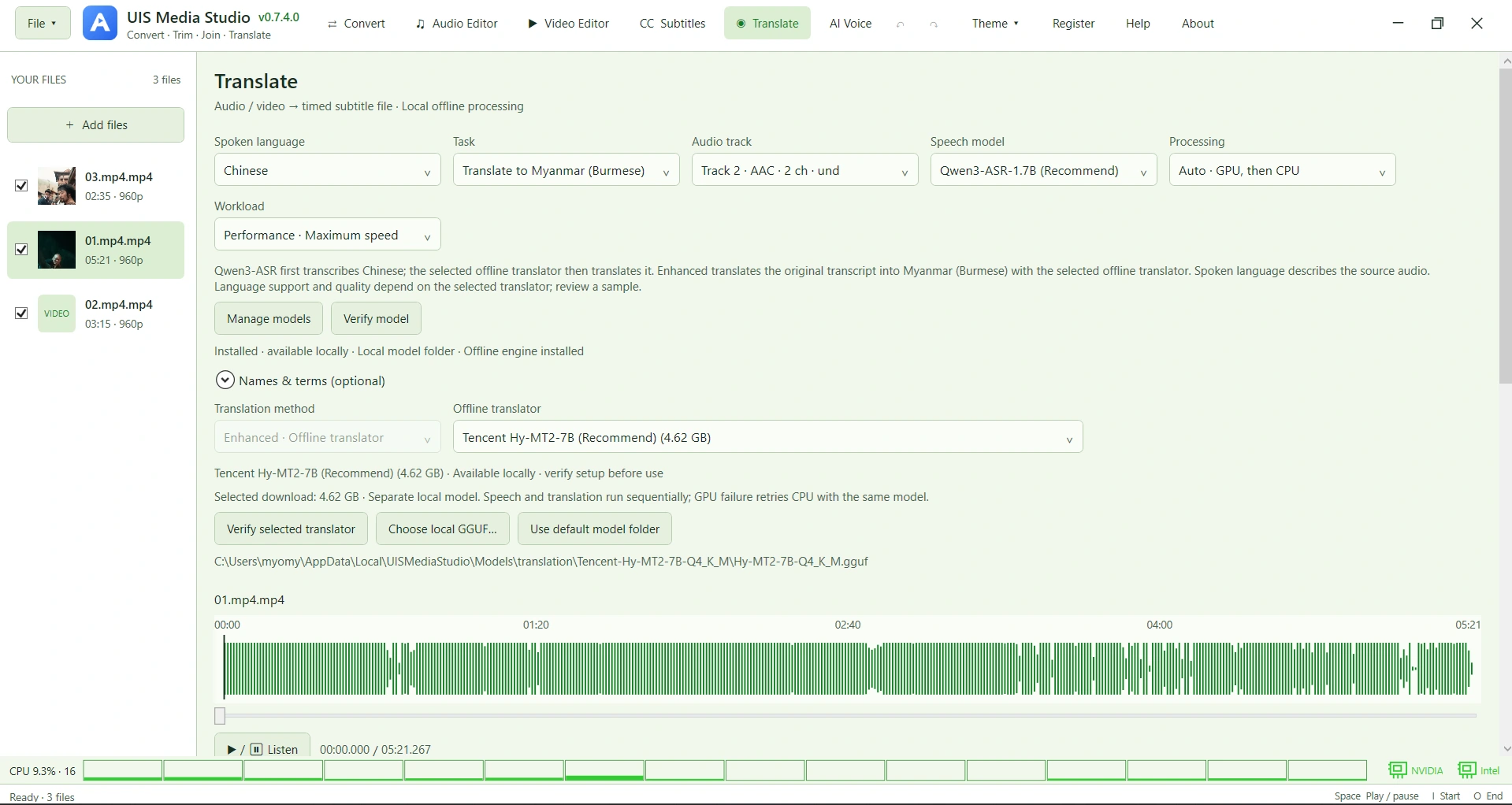
The Translate workspace includes both transcription and translation workflows.
Choose Transcribe original language when you want the spoken words written in their original language.
For example, Myanmar speech can produce Myanmar text when using a compatible speech model.
The speech-recognition model handles this task; a separate text translator is not required.
Choose a Translate to… task when the subtitle output should use a different language.
For supported English output, Quick uses Whisper’s direct speech-to-English translation.
Enhanced first recognizes the original-language speech, then passes the resulting text to a separate offline translation model.
Generated captions remain editable. Review the text and timing, then save:
These actions create separate text files. They do not automatically burn the captions into a video.
UIS Media Studio offers selectable speech models and offline text translators, with local model management.
Depending on the selected workflow, available model families include Whisper and specialized speech models, together with offline translators such as Tencent Hy-MT2, Alibaba Qwen, and Google TranslateGemma.
Model-management features include:
Recommend labels apply to the current workflow rather than every recording. More than one model may be suggested, and your manual selection remains available.
Language coverage, recognition quality, translation quality, and hardware requirements vary by model. Generated text can be reviewed and corrected before saving.
Supported transcription, translation, and voice-generation workflows run locally after their required engines and models have been installed.
Media does not need to be uploaded to an online AI service for these offline workflows.
Internet access is needed for automatic downloads and other explicitly online functions. Compatible models downloaded separately can also be selected locally where supported.
UIS Media Studio provides hardware-encoding options for video export, including supported NVIDIA, AMD, and Intel encoders.
AI acceleration depends on the selected engine, its installed runtime, and the computer’s hardware. GPU support for video encoding and GPU support for AI processing are separate capabilities.
Supported workflows can fall back to the CPU when GPU processing is unavailable.
Performance, Balanced, and Efficiency workload choices provide additional control for supported AI processing. Their effect depends on the engine and hardware; they do not set a guaranteed temperature or power limit.
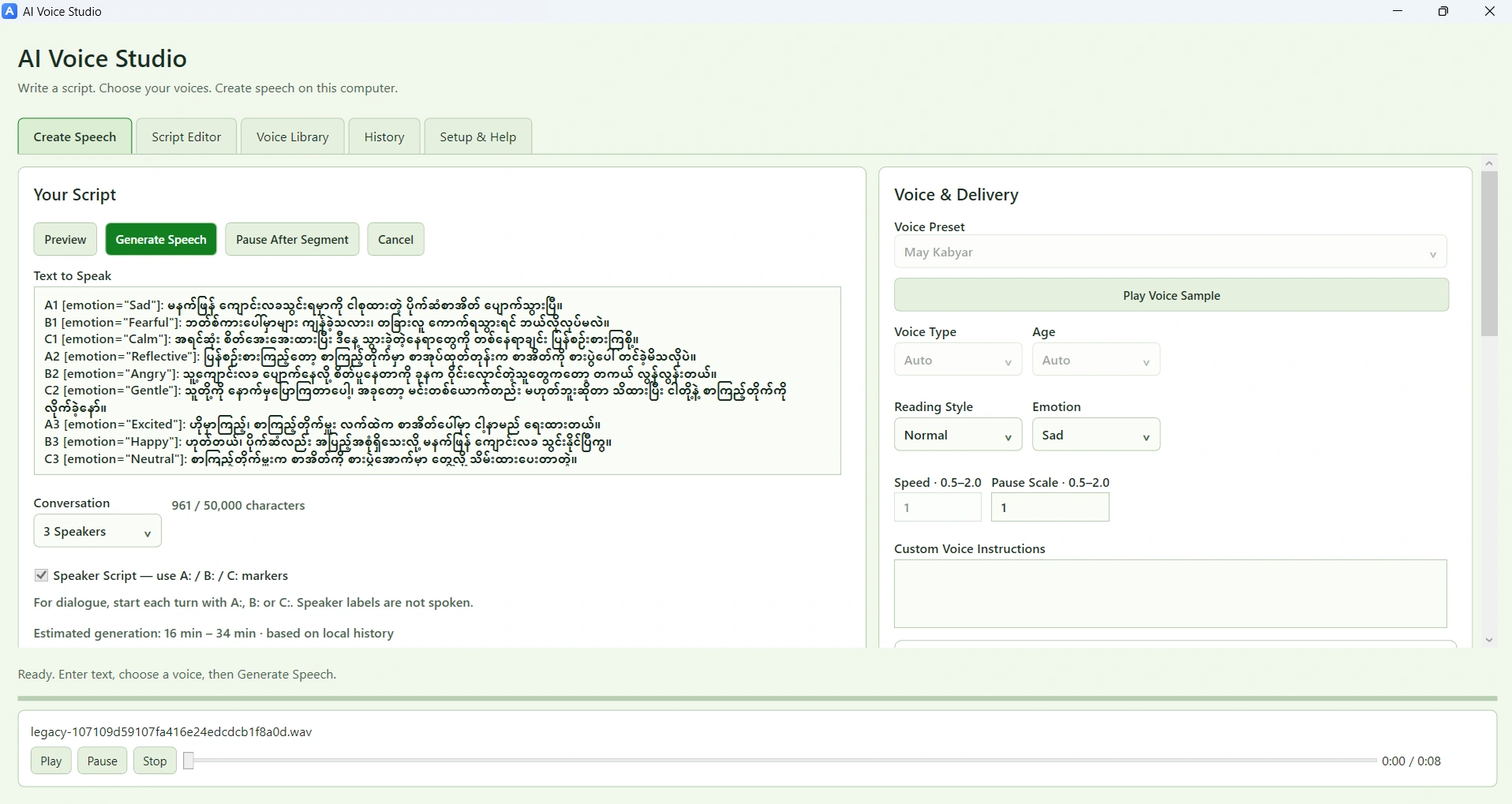
The independent AI Voice Studio workspace creates speech from text or dialogue scripts using its supported local engine.
Open it directly from the main application without selecting a media file first.
Voice generation has its own model, runtime, and hardware requirements.
Save an editable .uismedia project to continue your work after closing the application.
Projects retain supported editing decisions, scene arrangements, subtitle settings, and transcription state.
The original media files remain separate, so keep them available when reopening a project.
A saved project, a subtitle file, and an exported video serve different purposes:
UIS Media Studio includes:
| Item | Details |
|---|---|
| Product | UIS Media Studio |
| Developer | United Info-Sec Co., Ltd. |
| Platform | Windows desktop; current portable package is 64-bit |
| Interface language | English |
| Audio output | MP3 and WAV |
| Video output | MP4 and MKV |
| Transcript output | SRT, supported SUB, and plain TXT |
| Editable projects | .uismedia |
| AI processing | Supported local offline engines and models |
| Hardware acceleration | Depends on the operation, engine, runtime, and hardware |
Optional models are downloaded separately and retain their respective license terms. AI-generated captions and translations should be reviewed, particularly for names, numbers, specialized terminology, and difficult recordings.
Extract audio, refine your edits, arrange scenes, create subtitles, and work with offline speech and translation tools—all within UIS Media Studio.
Discover UIS Media Studio by United Info-Sec Co., Ltd.
Visit www.malwareinfo.app or www.unitedinfosec.com for product information.
INSIDE UIS MEDIA STUDIO
Expand a screenshot to inspect the interface. All supplied figures remain available in order.
GET UIS MEDIA STUDIO
Request the current package and installation requirements by email. This opens a draft in your email application.
Request the Windows packageWindows desktop · 64-bit
USD 50
Two years license
Purchase inquiryUSD 100
Lifetime license
Purchase inquiryContact UIS for confirmed purchase and payment instructions. No payment is taken on this page.
MORE FROM UIS
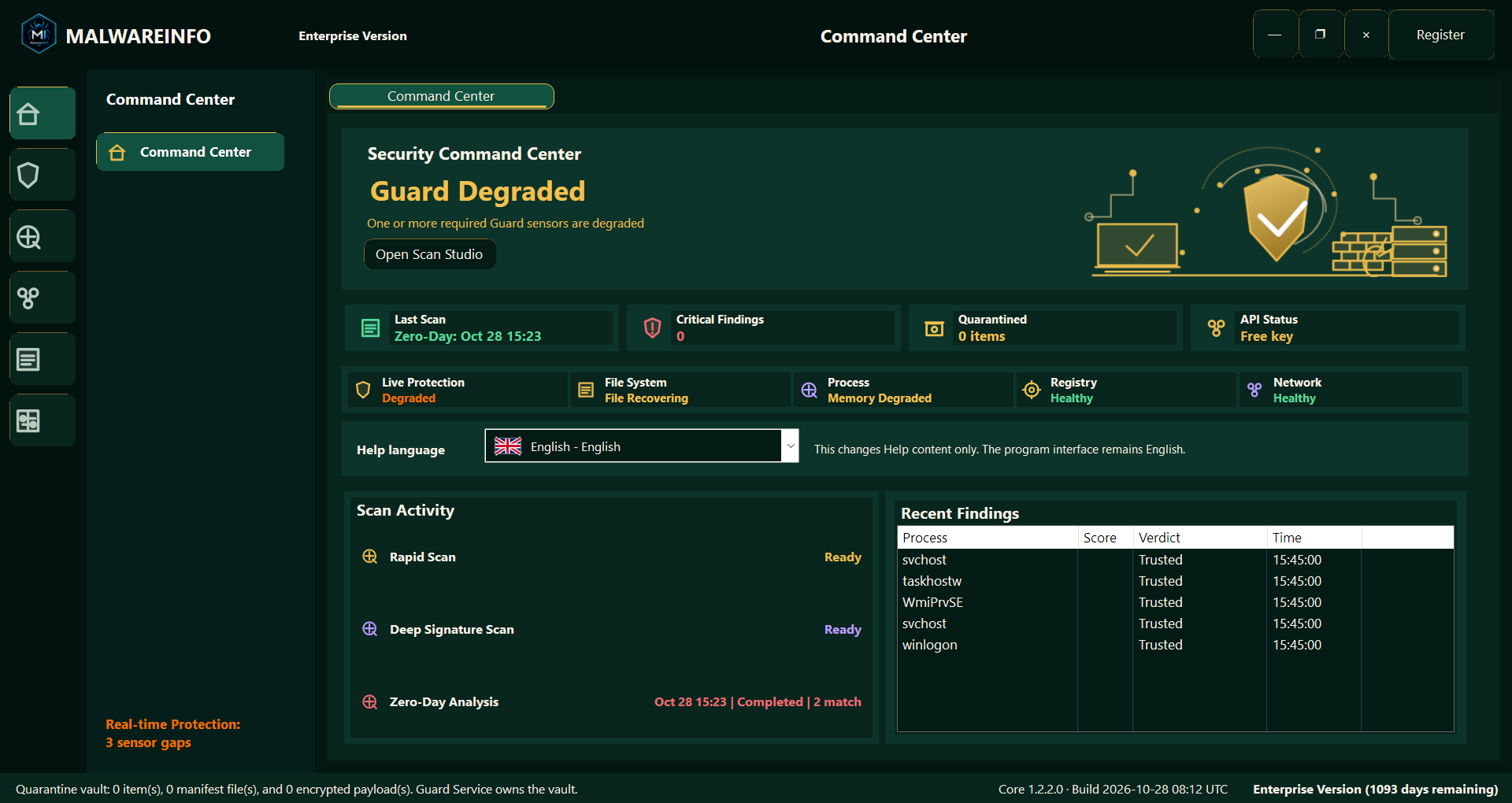

Security analysis
File inspection, memory analysis, runtime tracing, and evidence reporting in one connected Windows investigation workflow.
Explore MalwareINFO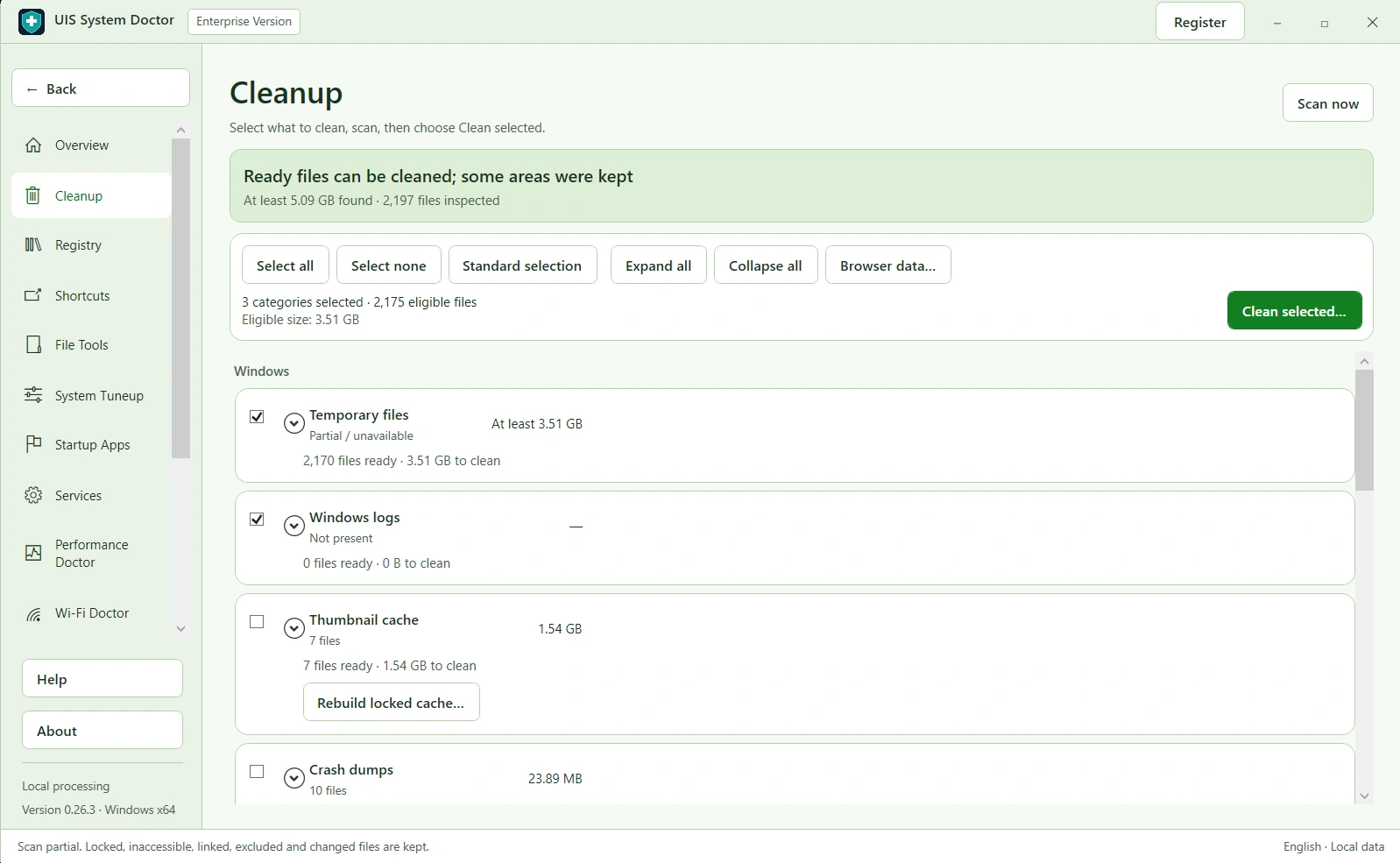

Windows maintenance
Bring cleanup, startup management, selected history removal, and performance diagnostics together, with recovery options for supported changes.
Explore UIS System DoctorLET’S WORK ON IT
Tell us what you need. We can discuss a practical starting point.